The Best Way to Scan Old Photos at Home
The best way to scan old photos at home is on a flatbed scanner, one print at a time, at 600 dpi. A feed-through scanner is quicker for a big stack, but a flatbed is gentler on fragile prints.
On this page (11 sections)
- Why a flatbed is the safest way to scan old prints
- The best dpi for most family prints
- Three scanners that suit most home jobs
- Handling prints without damaging them
- Scan settings that matter
- How to scan an old photo step by step
- How many prints fit in one session
- What a scanner can't fix
- When a feed-through scanner makes sense
- Mistakes that damage prints or hurt quality
- The best way to scan old photos for most homes
The best way to scan old photos at home is a flatbed scanner, one print at a time, at 600 dpi. That setup keeps each print flat and sharp, and it lets you check every scan before you move on.
A flatbed also suits the fragile prints a feeder can crease or tear. You lay the print on the glass, close the lid and let the scanner do the work.
Why a flatbed is the safest way to scan old prints
A flatbed takes one print at a time from the glass, so nothing pulls the paper through rollers. That matters for curled, brittle or cracked prints, which can jam or tear in a feed-through scanner.
The print also sits still while the light passes under it. That keeps the image sharp across the whole sheet, including the corners.
The best dpi for most family prints
600 dpi is a common setting for prints you want to keep and enlarge later. It captures more detail than a phone screen can show, and the files stay a practical size for sharing and printing.
Drop to 300 dpi only if you're scanning hundreds of prints just to share them on screens. Our guide to the best DPI for scanning old photos walks through the trade-offs.
Three scanners that suit most home jobs
Most home jobs fit one of three scanners. Start with the number of prints you have and how much desk space you can give the scanner.
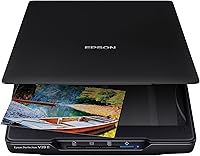
For a flatbed, the V39 II is the broadest choice for old prints, books and albums. Our full guide to the best flatbed scanners for photos covers the rest of the field.
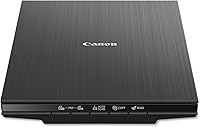
The Canon LiDE 400 review covers the USB-C option, and the Epson V19 II vs V39 II comparison explains the budget choice.
Handling prints without damaging them
Hold a print by its edges, and wash your hands before you touch a stack. Oils from your fingers can leave marks that show up on every scan.
Work on a clean, flat table away from food and drinks. Move one print at a time, and return each print to its envelope or sleeve before you start the next one.
Never force a curled print flat with pressure. Let it rest in a dry room, then place it on the glass gently and don't press it.
Scan settings that matter
Set the color mode to color even when the print is black and white. A color scan keeps the gray tones in the paper, which a black-and-white scan often flattens.
Save one archive copy as a TIFF file, since it keeps all the detail. Save a second copy as a JPEG for sharing, because it opens on any phone and takes much less space.
Turn off any automatic color or dust fixes until you have seen the raw preview. Some auto settings can wash out old prints or hide real detail.
How to scan an old photo step by step
The best way to scan old photos: before you start
Clean the glass with a soft, lint-free cloth so dust doesn't show up on every scan. Our guide on how to clean a flatbed scanner glass covers the safe way to do it.
Check the print for sticky or flaking surfaces. A print that flakes should be handled as little as possible, and a conservator is the right person to help if the damage is serious.
Scanning old photos on a flatbed
- Place the print face down on the glass and line it up with the corner guides.
- Set the resolution to 600 dpi and the color mode to color.
- Run a preview, check the edges and the focus, then scan.
- Save the archive TIFF and the shareable JPEG in separate folders.
After you scan
Open each scan at full size and look for dust, glare and cropped edges. Scan again with a clean glass if a print looks soft, since a rescan costs less than a lost detail.
Name the files with the year and the event, so the collection stays findable. A simple name like "1978 beach trip, 01" is easier to search than a camera number.
How many prints fit in one session
Plan for an hour or two in a sitting, once you count the cleaning, the preview and the saving. A longer session tires your eyes and your hands, and a tired hand is more likely to slip a print out of line.
Scan a few prints first, then check the files at full size before you commit to a bigger batch. That quick check catches a setting problem before it repeats across the whole box.
Work in small groups, and label each group by decade or event. When you come back the next day, you'll know exactly where you stopped.
What a scanner can't fix
A scanner copies what is on the print, including the wear. Fading, creases and water stains show up in the file, and no setting removes damage that is already in the paper.
Some scanners and apps include color restoration or dust removal, which clean up a copy. They can't rebuild a missing face or a torn corner, so keep the original and edit a separate file.
For a print that matters a great deal, a professional restorer can do more than any scanner. A scan is still the best way to make a safe, shareable copy first.
When a feed-through scanner makes sense
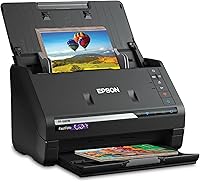
A feed-through scanner is the better choice when you have hundreds of prints and most of them are in good shape. Epson's FastFoto line includes a carrier sheet and a microfiber cloth for delicate prints, which helps when you feed many at once.
Even then, check each print before you feed it. A feeder is fast, but a flatbed gives you more control over the prints that matter most.
If you're weighing a flatbed against a sheetfed scanner for the rest of your paperwork, flatbed scanner vs sheetfed lays out the trade-offs.
Mistakes that damage prints or hurt quality
Scanning a print before it's cleaned is the first mistake, because dust and fingerprints end up in every copy. The second is pressing hard on the lid of a thick album, which can crack the spine or shift the page.
The third is a low setting for prints you want to enlarge later. A 150 dpi scan can look fine on a phone but turns blurry when you print it at a larger size.
The best way to scan old photos for most homes
For most homes, the best way to scan old photos is one print at a time on a flatbed, at 600 dpi, with an archive copy saved as a TIFF. Start there, then add a feed-through scanner only if the stack is large and the prints are in good shape.
The Library of Congress publishes preservation guidance for family photos, which is a useful place to read about handling and storage.
If you're still deciding between a scanner and a phone, read photo scanner vs phone app before you buy. If your box holds slides or negatives, the Kodak Slide N Scan review covers a film-first option, and the Epson FastFoto vs ScanSnap iX2500 comparison helps if you want a feeder.
For the full range of photo scanners, see our photo scanner buying guide.
Frequently asked questions
Is a flatbed scanner good for old photos?
Yes, a flatbed lays each print flat on the glass, so curled, small or brittle prints stay out of rollers. It is slower than a feeder, but that extra time keeps a box of family photos safe.
What dpi should I use to scan old photos?
600 dpi is a good default for prints you want to keep and enlarge later. 300 dpi is enough for sharing on a phone or a screen, and it makes smaller files for large batches.
Can I scan old photos with my phone instead?
You can, but a phone camera rarely gives a flat, sharp copy, and glare shows up on glossy prints. A scanner gives you a consistent file each time, which matters when you scan a whole family collection.