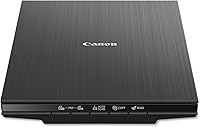
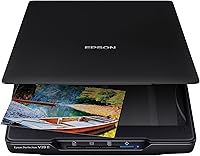
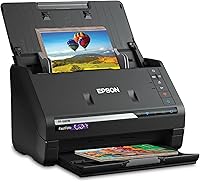
Best DPI for Scanning Old Photos
The best dpi for scanning old photos is 600 for most prints, since that leaves room to crop and enlarge them. Slides and negatives need a higher setting, often 2,400 dpi or more.
On this page (7 sections)
The best dpi for scanning old photos is 600 for most prints, and 2,400 or more for slides and negatives. Dpi stands for dots per inch, and it sets how many pixels a scan captures for each inch of the original, so more dots mean more detail and a larger file.
Prints, slides and negatives each have a different sweet spot. The guide below covers all three, along with the settings on the scanners we compared.
Best dpi for scanning old photos at home
Most old prints do well at 600 dpi. It captures enough detail to crop a face or enlarge a background without the picture turning soft.
A 4x6 print scanned at 300 dpi is about 1,200 by 1,800 pixels. At 600 dpi, the same print is about 2,400 by 3,600 pixels, which gives you room to work.
The extra pixels cost disk space. Scanning a whole box at the top setting fills a drive fast, and most prints don't need it.
Best dpi for old photos you only view on screen
Use 300 dpi for a print you'll only look at on a screen, or one you'll print no larger than its original size. It is also a fair choice for a quick first pass through a big box.
A 300 dpi scan can be redone later at a higher setting if you change your mind. Keep the original print in its envelope while you work, so you can scan it again.
When to go higher than 600 dpi
Go higher for tiny prints, such as wallet-size photos, or for prints you plan to enlarge a lot. The gain gets smaller as you go up, while the files grow fast.
Check the scan on a big screen before you commit to a setting. Zoom in on a face or a sign, and if the detail holds, the setting is right.
Why a higher dpi can make an old print look worse
A higher setting picks up more than the image. Grain, dust specks, paper texture and surface cracks all show up in the scan too.
A soft or faded print won't gain sharpness from a higher number. The setting only records the detail that is there, so the print's own condition sets the limit.
Clean the glass and the print before you raise the setting. Otherwise the extra detail will mostly show the dust.
Our guide on whether scanning damages old photos covers the handling side.
Slides and negatives need more dpi
Film is small, so slides and negatives need a higher setting to reach a useful size. A 35mm slide is about 0.94 by 1.42 inches, so 2,400 dpi gives roughly 2,270 by 3,400 pixels.
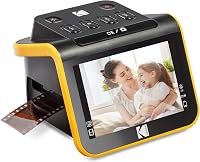
That's why many people go to 2,400 dpi or more for film. Our slide scanner guide covers the scanners built for that job.
The flatbed side of the question is in our negatives on a flatbed guide. A flatbed needs a built-in transparency unit before it can scan film well.
Film scanners are built around small frames, so their setup suits film from the start. Check the model before you rely on a flatbed for slides, and our slides on a flatbed guide explains why.
Scanner settings for each print
The top setting on a scanner is rarely the one you need. Pick the setting by how the print will be used, not by the largest number on the box.
How to test a dpi setting before a big batch
Pick one print that matters and one that is faded or damaged. Scan both at 300 dpi and at 600 dpi, and keep the files with clear names.
Open each pair on a large screen and zoom to the same spot, such as a face or a sign. The setting that holds detail without showing extra dust or grain is the one to use for the box.
Write the chosen setting on a sticky note near the scanner. That keeps the box consistent, even when the work runs over several days.
File formats: TIFF or JPEG
Keep a TIFF master for editing, and make a JPEG for sharing. A TIFF keeps more detail, and a JPEG is small enough to send to family.
Each JPEG save can soften the picture a little, so export JPEGs from the TIFF rather than from another JPEG.
Name the files the same way you name the masters, so a copy is easy to match with its original.
The best dpi for scanning old photos: the short answer
For old prints, scan at 600 dpi and stop there unless a print is tiny or you plan a large enlargement. For slides and negatives, start at 2,400 dpi and check the crop on a big screen.
Test one print at two settings before you start the box. Compare the crops on a big screen, and then use the setting that holds up.
The guide to the best scanner for old photos explains the DPI and speed trade-offs in more detail. If you're still choosing a machine, our best photo scanner roundup shows which types suit prints and which suit film.
If you're still deciding whether a scanner is worth buying at all, read are photo scanners worth it.
For the full project, read how to digitize old photos, step by step.
For the full range of photo scanners, see our photo scanner buying guide.
Frequently asked questions
Is 300 dpi enough for old photos?
It's enough for a print you'll only view on a screen or print at its original size. For cropping or enlarging, 600 dpi gives more room.
What dpi should I use for slides?
Use 2,400 dpi or more for slides, since a 35mm slide is small. A dedicated slide scanner is set up for that size, which is one reason to choose one over a flatbed.
Does a higher dpi always give a better scan?
No, a higher setting only adds detail up to what the print holds, and it makes the file larger. Match the setting to how you'll use the scan.