How to Choose the Best Scanner for Old Photos
Choose the best scanner for old photos by how many prints you have, then check the dpi, speed and software. A flatbed suits a smaller pile and a fussy job, while a feed-through model like the FastFoto handles a big stack.
On this page (14 sections)
- Start with how many prints you have
- How much dpi do old photos need?
- What speed really means for a box of prints
- Which software comes with a photo scanner
- Color restore, dust removal and what they can't do
- Connection, cables and desk space
- Check the operating system before you buy
- Common mistakes when buying a photo scanner for old photos
- Who should buy which type of photo scanner
- Run a trial scan before the full batch
- What to expect from scans of old prints
- Plan the archive before you start scanning
- A checklist for any photo scanner for old photos
- Which scanner for old photos should you choose?
The best scanner for old photos is a flatbed for a smaller pile and a feed-through model like the Epson FastFoto for a big stack. Start with how many prints you have, then check dpi, speed and software before you look at the rest.
This guide walks through each choice in order. It ends with a short checklist, so you can compare any model you find against the same questions.
Start with how many prints you have
The number of prints decides the type of scanner more than anything else. A few dozen prints suit a flatbed, while a stack of several hundred prints suits a feed-through model.
A flatbed takes one print at a time. You place each print on the glass, close the lid and check the scan before you move on.
That control matters for a photo you can't replace.
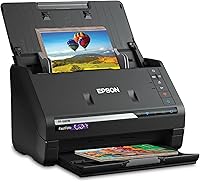
A feed-through scanner pulls prints in one after another. The FastFoto FF-680W is built for that kind of job, and Epson says it can batch up to 36 photos at a time.
Most families have a mix. A flatbed handles the single photos you want to place with care, and a feed-through model clears the bulk of the pile.
Our best photo scanner for old family photos roundup compares both types in one list.
How much dpi do old photos need?
Dpi, or dots per inch, is how many points the scanner reads across each inch of the print. A higher dpi gives a bigger file with more detail, but it also takes longer to scan and save.
For most family prints, 600 dpi gives a sharp file that's easy to share and print at a standard size. Epson gives 300 dpi for sharing, 600 dpi TIFF for archiving and 1200 dpi for enlarging on the FastFoto, which shows how a maker splits the choice.
Use the top setting only for a small print you plan to enlarge. For a full box, a middle setting keeps the files manageable.
Our best DPI for scanning old photos guide goes deeper on the numbers, and the step-by-step guide to digitizing old photos shows where dpi fits in the whole job.
What speed really means for a box of prints
Choosing a scanner for old photos by speed
Scan speed is the rate the scanner moves through each print, and makers quote it under ideal conditions. Epson says the FastFoto can scan about one photo per second at 300 dpi, which is fast on a stack.
Plustek says the ePhoto Z300 takes about 2 seconds for a 4 x 6 print at 300 dpi. Those figures are the makers' own, so time a few of your prints before you plan a big batch.
Speed on paper is only part of the job. Loading, naming and checking each file takes time too, so a fast scanner still needs an afternoon for a big box.
A flatbed takes longer per print, since you place and close the lid each time. For a few hundred prints, that's a steady session rather than a rush.
Which software comes with a photo scanner
Software decides what you can do after the scan. It can fix color, stitch big images, send files to the cloud or store notes beside each photo.
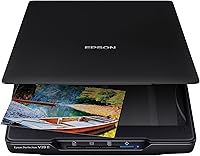
The Epson Perfection V39 II's software stitches oversized images together and sends scans to cloud storage. Its Easy Photo Fix restores faded color with one click, and the V19 II has the same fix.
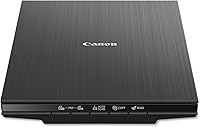
The Canon LiDE 400 uses EZ buttons, auto scan mode and built-in PDF buttons. Canon says those buttons save multi-page files that are editable and searchable.
The FastFoto pairs its scanner with the Epson FastFoto app, which lets you add voice and text to a photo or make a slideshow. Epson says the app is for sharing the stories behind the pictures.
Color restore, dust removal and what they can't do
Color restore and dust removal help with faded prints and specks, and most photo scanners include some form of them. The fixes change the scanned file, not the original print.
No software can rebuild detail the print has lost. A torn corner, a water stain or a crack stays on the print, so keep the original and treat the enhanced file as a copy.
Our guide to whether scanning photos can damage them covers the handling side of the job.
Connection, cables and desk space
Most photo scanners here connect over USB, while the FastFoto also offers Wi-Fi. A wireless connection suits a shared family computer, and a USB cable suits a desk where the scanner stays put.
The LiDE 400 uses a USB-C cable that carries data and power. The LiDE 300 uses a USB 2.0 cable with a Mini-B end, so check your computer's ports before you order.
Measure the desk before you buy, including the depth and the room above for the lid. The Epson V39 II and V19 II weigh 3.1 pounds, and the Canon models weigh 3.6, so none is hard to move.
Our guide to scanning photos to a Windows computer walks through the cable and software steps once the scanner arrives.
Check the operating system before you buy
Makers list which versions of Windows and macOS their scanners support. Canon's compatibility notes for the LiDE 400 stop at Windows 10 and macOS High Sierra, so check that your system is covered.
Don't assume a newer system works because an older one does. Look for the current driver on the maker's support page, and install it before you connect the scanner.
Common mistakes when buying a photo scanner for old photos
The first mistake is buying by the highest dpi figure alone. A 4800 dpi flatbed gives a big file, but a 600 dpi setting covers most prints, and the top setting slows the work.
The second is choosing a flatbed for a stack of several hundred prints. You'll spend a lot of time placing and closing the lid, and a feed-through model would move faster.
The third is expecting a photo scanner to scan film. A feed-through scanner usually won't read negatives or slides, and a flatbed needs a built-in transparency unit to do it, so check before you buy.
Our guide to a film scanner for home negatives covers that second box, and the flatbed guide covers the glass models in more detail.
Who should buy which type of photo scanner
Your situation shapes the choice more than any single spec. Four common buyers show how the decision tends to go.
A grandparent with one shoebox of prints usually wants a simple flatbed with clear controls. The V19 II or LiDE 400 suits that pile, and a feed-through model would be more machine than the job needs.
A family historian with several hundred prints usually wants speed and a clean file. The FastFoto handles the stack, and a flatbed covers the few prints that need extra care.
An adult child digitizing a parent's photos often wants files that are easy to share. Look for a phone app or cloud sending, such as the FastFoto app or the V39 II's cloud option.
Someone with a box of slides or negatives needs a film scanner, not a photo scanner. Our best film scanner list covers that box, and the best slide scanner list covers the slide-first models.
Run a trial scan before the full batch
A trial scan is a few prints scanned with the settings you plan to use for the whole box. Pick a faded print, a dark print and a print with a face or fine detail, so the trial shows the range.
Check each trial scan at full size on a large screen, not on a phone. Look for dust specks, cropping errors and color casts, and note the setting that fixed each one.
If the trial looks right, set the software to save the files in the format you chose and start the batch. If it doesn't, change one setting at a time, so you know what made the difference.
What to expect from scans of old prints
Old prints often show fading, yellowing, silvering and fine cracks. A scanner captures what's on the print, so the scan shows the damage too.
Color restore tools help most with fading and a yellow cast. They help less with a print that has lost part of its image, since the software can't bring back detail that's gone.
Some prints look better at a slightly higher setting, where the paper's texture shows as fine detail. Others look better at a lower setting that smooths the texture, so the trial scan is the best guide.
Plan the archive before you start scanning
Decide the folder layout and the file names before the first print. A simple pattern, such as year, family name and a number, keeps the archive easy to search later.
Keep the archive copies in one place, and make a second copy on another drive. Many archivists suggest three copies in two places, with one of them away from home.
Write down what each box holds, so you can match the scans back to the originals later.
A checklist for any photo scanner for old photos
Use the same questions on every model you compare, so the choice rests on facts rather than the front of the box.
- How many prints do you have, and do they come in one batch or many?
- Does the scanner take one print at a time on glass, or a stack through a feed?
- What optical resolution does the maker state, and which settings does it offer?
- How fast does it scan, and how long will the full job take?
- Which software comes in the box, and does it cover color and cloud needs?
- Which cable and ports does it need, and does your computer have them?
- Does the maker's support page list your version of Windows or macOS?
If you can answer all seven, the choice narrows quickly. The photo scanner buying guide shows how these questions fit the wider range of scanners.
Which scanner for old photos should you choose?
Choose a feed-through model like the FastFoto FF-680W for a big stack of prints, and choose a flatbed like the V39 II for a smaller pile and a fussy job. For most families, a flatbed with one-click color fixes covers the widest range of prints.
Check the dpi, speed and software against your pile, then confirm the cable and the operating system before you order. Those four checks catch most of the problems people run into later.
Keep the originals safe whatever you buy. The scan is a copy, and a good scanner makes the copy easier to keep and share.
Frequently asked questions
What should I look for in a scanner for old photos?
Start with how many prints you have, then check the optical resolution, the scan speed and the software. A flatbed suits a few prints or a fussy job, and a feed-through model suits a large stack.
What dpi is best for old photos?
For most family prints, 600 dpi is enough for a sharp file, and 300 dpi suits quick sharing. Use the highest setting only for a print you plan to enlarge.
Is a faster photo scanner always better?
A faster scanner saves time on a big stack, but speed doesn't fix a dirty glass or a bent print. Choose the speed that matches the pile, and check the scans on a large screen.
Do I need software that fixes faded color?
Helpful, but not required. Epson's Easy Photo Fix and Canon's color restore are one-click fixes, and they change the scanned file rather than the original print.