How to Digitize Old Photos, Step by Step
To digitize old photos at home, sort the prints, clean the scanner glass, scan each one at 600 dpi and save every file in two places. Put the originals in a safe box once each one is scanned.
On this page (9 sections)
Here is how to digitize old photos at home: sort the prints, clean the scanner glass, scan each one at 600 dpi and save every file in two places. Most of the work is sorting, naming and checking files, and the scanning itself goes quickly once the pile is ready.
This guide follows the steps in order: sort, choose a scanner, clean, scan, name and store. Each step is short, and you can stop after any one of them and pick up later.
Sort old photos before you scan
Sort prints by size and condition before you scan. A 4x6 and an 8x10 need different handling in a feed scanner, and fragile prints need a flatbed.
Set aside anything cracked, flaking or stuck to another print. Those are the ones to scan slowly on a flatbed, or to show a professional if they matter to the family.
Keep a list of names, dates and places as you go. Store it on paper or in a file, not on the print itself.
Family members often recall who is in a photo, and that detail is easy to lose after the scan.
Check the first print before you scan the box
Scan one print first, and check the file on a large screen before the box goes through. Look for crooked edges, cut-off corners and dust marks.
Adjust the setting, the placement or the cleaning based on what you see. Then run the rest of the sorted pile with the same settings.
This one check saves a lot of rescans later. It also shows whether the settings suit the pile you have.
Clean the glass and the prints
Clean the glass before every session. Dust on the glass shows up on every scan, so one wipe at the start saves a lot of editing later.
Turn the scanner off, and unplug it if the maker's guide asks you to. Wipe the glass with a soft microfiber cloth, and don't spray liquid straight onto the glass.
Dust on the print is a different job. Use a soft, dry brush or a blower, and never a damp cloth on the paper.
Leave stuck-on dirt alone, since scrubbing can take the surface with it.
Scan each print at 600 dpi
For most old prints, 600 dpi is the setting that leaves room to crop and enlarge. Our guide to the best dpi for scanning old photos explains when 300 dpi is enough and when a higher setting helps.
Place the print face down on the glass, square to the edge, and close the lid gently. Scan in color for most prints, since a color scan keeps the full tone of a faded print.
Check each scan before you move on. Look for a crooked edge, a cut-off corner or a dust mark, and rescan right away while the print is still on the glass.
Choose a scanner for the job
A flatbed suits fragile and thick prints, and a feed scanner suits a big stack of sturdy ones. Many people use both, one for the albums and one for the loose pile.
Pick a flatbed or feeder to digitize old photos
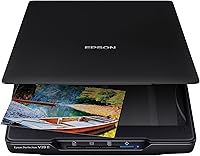
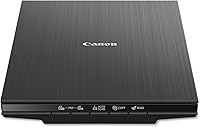
A flatbed lays each print flat under the lid. It takes longer per print, but the print never moves through rollers, which is the gentler route for old paper.
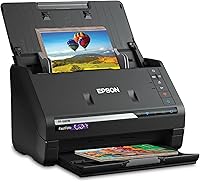
A feed scanner is the faster choice for a big box of sturdy prints. The FastFoto feeds prints in batches and captures notes written on the back.
Name, save and back up the files
Name each file as you scan it, using a pattern you'll repeat. A simple format works well: year, names, place and a number, such as 1962 Ruth and Frank Lake Ontario 01.
Save a TIFF master and a JPEG copy for sharing. The TIFF keeps more detail for later edits, and the JPEG is small enough to send to family.
Keep the masters on an external drive, and a second copy in a cloud folder. One failed drive shouldn't take the whole set with it.
Store the originals in a safe box
Once each print is scanned, put it in an archival box. Lineco says its Museum Archival Storage Box is acid-free and lignin-free, and it's sized for 9x12 items.
Keep the box in a cool, dry room away from direct sunlight. Don't store prints in a damp basement or an attic, since heat and moisture are a bigger long-term risk to prints than a careful scan.
A scan is a copy, so the original still matters. Our guide on whether scanning damages old photos explains how to handle the originals during the process.
Keep a simple log
A short log keeps a long project on track. Write down which boxes are done, which prints are set aside for a flatbed, and which files still need a name.
Work in sessions of an hour or two. Stop before you tire, since rushed sessions are when names get mixed up and crops get missed.
How to digitize old photos from start to finish
If you're not sure whether a feed scanner or a flatbed suits your pile, our best photo scanner roundup compares the types side by side. For the bigger question of whether a scanner is worth buying at all, read are photo scanners worth it.
For the simplest overall method, see the best way to scan old photos. The guide to cleaning a flatbed scanner walks through the glass cleaning step in more detail.
For the full range of photo scanners, see our photo scanner buying guide.
Frequently asked questions
How long does it take to digitize old photos?
It depends on the pile. A flatbed takes a few minutes per print once you count the setup and checks, while a feed scanner clears a box much faster.
Should I scan old photos in color or black and white?
Scan in color for most prints, even if they look black and white, because color mode keeps the full tone of faded or tinted prints. You can make a grayscale copy later from the color file.
Can I use my phone to digitize old photos instead?
A phone can make a quick copy, but the light and the angle change from shot to shot. A scanner lays the print flat and uses the same settings for every print, which is why it gives more even results.