Photo Scanner to Computer: How to Scan on Windows
To scan photos to a Windows computer, install the scanner's software from the maker's support page, connect the cable, then scan into a folder you choose. Check that the scanner supports your version of Windows before you buy or install.
On this page (8 sections)
To scan photos to a Windows computer, install the scanner's software from the maker's support page, connect the cable and scan into a folder you choose. Check that the scanner supports your version of Windows before you buy or install, since some makers list older versions.
The steps are the same for most flatbeds. The main difference is the cable and the software, so check both before you start.
What to check before you connect the scanner
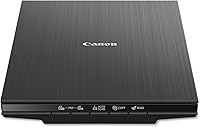
Start with your version of Windows. Canon's compatibility notes for the LiDE 400 list Windows 10 and older, so confirm your system is covered on Canon's support page before you order.
Next, check the ports on your computer. A USB-C scanner needs a USB-C port, and an older scanner with a Mini-B cable needs a matching port or an adapter.
Then look at the space on the desk. A flatbed needs room for the lid to open fully, and a cable run that doesn't pull on the scanner.
Install the scanner's software first
Download the software only from the maker's support page, and choose the version for your version of Windows. Software from other sites can be out of date or unsafe.
Run the installer and follow its steps. Many makers ask you to install the driver before you connect the cable, so read the manual for the model you bought.
Restart the computer if the installer asks you to. That step makes sure the scanner's driver loads before the first scan.
Connect the photo scanner to your computer
Photo scanner to computer: plug in and wait for Windows
Plug the power cable into the scanner and into a wall outlet, if it needs one. Some flatbeds run on USB power, so the cable alone is enough.
Connect the data cable to the scanner and to a USB port on the computer. Turn the scanner on, and wait a moment while Windows finds it.
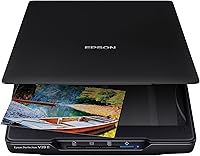
The Epson Perfection V39 II uses a USB connection and Epson's ScanSmart software. The Kodak Slide N Scan connects to a USB-enabled computer over USB-C, which is worth noting if you also have slides.
Scan a trial print before the batch
Place one print face down on the glass, close the lid gently and open the scanner app. Set the resolution, the color mode and the file type before you press scan.
For most family prints, 600 dpi gives a sharp file that's easy to share. Choose a higher setting only for a print you plan to enlarge, and our best DPI for scanning old photos guide has more detail.
Scan the trial print and check the result at full size on a large screen. Look for dust, fingerprints, cropping errors and a color cast before you change the settings.
Pick a folder before you scan
Make one folder for the project, such as Family Photos or a year, before the first scan.
A folder on the Pictures library keeps the files easy to find on Windows. If you share the computer, pick a name that anyone in the family can recognize.
Set the scanner app to save into that folder, and name each file as you go. A simple pattern, such as year, family name and a number, keeps the archive in order.
Save an archive copy as a TIFF if the scanner allows it, and make a JPEG for sharing. Keep the TIFF as the master copy, since you can edit or rescan it later.
Scan the whole batch in steps
Scan the prints in small groups, such as one envelope or one album page at a time. Small groups make it easy to find a problem print and rescan it.
Check each group after the scan, and fix a crooked or dusty print before you move on.
Keep the first session short, so the settings and folders become routine before the box is finished. Clean the glass between groups if dust builds up, using the steps in our guide to cleaning a flatbed scanner glass.
Back up the folder to a second drive when the batch is done. A scan is a copy, so keep the originals safe too.
Fix the common problems
If Windows can't find the scanner, check the cable at both ends and try a different USB port. Then restart the computer and confirm the software is installed.
If the scans look faded, check the color mode and the Easy Photo Fix or color restore setting in the software, since most flatbeds offer one.
If the scans show streaks or dark lines, clean the glass and the white backing strip on the lid. A trial scan after cleaning confirms the fix.
Our best flatbed scanners for photos roundup compares the models, and the best photo scanner for old photos covers feed-through options too.
Save the files from your photo scanner to your computer
Keep the scanned files in a folder on your own drive, and decide who can open it. Cloud sharing is optional, and it's worth a close look before you upload family papers or photos.
Our guide to scanning old photos at home covers the full job, from sorting the prints to storing the scans.
Start with one box, check the results and then move on to the next. A steady routine keeps the whole project on track.
For the full range of photo scanners, see our photo scanner buying guide.
Frequently asked questions
Why won't my Windows computer find the scanner?
Check the cable at both ends, and try a different USB port on the computer. Then restart the computer and confirm the maker's software is installed, since the scanner often needs its own driver.
Do I need the maker's software to scan on Windows?
Windows can open a basic scan app, but the maker's software usually gives more control over resolution, color and file type. Download it only from the maker's support page.
Which file format should I save scanned photos in?
Save an archive copy as TIFF if the scanner allows it, and make a JPEG for sharing. Keep the TIFF as the master, since it can be edited and rescanned later.
Can I scan photos to a Windows computer over Wi-Fi?
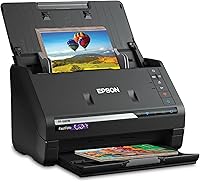
Only with a model that offers wireless scanning, such as the FastFoto FF-680W, which connects over Wi-Fi as well as USB. The LiDE 400 and the V39 II connect over USB only.