Photo Scanner vs Phone App: Is a Scanner Worth It? (October 2026)
A phone app is enough for a handful of prints you want to share, but a photo scanner is worth it for a whole family collection. A scanner gives flat, sharp, consistent files, and a phone depends on light, angle and a steady hand.
On this page (18 sections)
- Is a photo scanner worth it compared with a phone app?
- How phone scanning works and where it falls short
- What a dedicated photo scanner adds
- Glossy prints, glare and lighting
- Where a phone app works best
- Resolution and detail
- Speed for a large collection
- What a phone gets right
- What a phone cannot fix
- What the scanner adds to a family archive
- Organizing a large collection
- Sharing and backup
- Time for a real session
- Who should stick with a phone
- Two scanners that cover the choice
- Setup, storage and the first session
- Mistakes to avoid when you choose
- So is a photo scanner worth it?
A phone app is enough for a handful of prints you want to share, but a photo scanner is worth it for a whole family collection. The phone is free and always in your pocket, while a scanner gives you flat, consistent copies of every print.
For a whole family collection, a scanner pays off. It removes most of the guesswork that comes with taking a picture of a picture.
Is a photo scanner worth it compared with a phone app?
A scanner is worth it when you have more prints than you want to fight with. A phone app works for a few snapshots, but the quality drops as the pile grows.
Each phone photo depends on the room, the window and your hand. A scanner gives the same light and the same focus on every print, which keeps a collection looking consistent.
How phone scanning works and where it falls short
Phone scanning apps use the camera to capture a print, then crop, straighten and sometimes brighten it. That works well on flat, matte prints in even light.
The trouble starts with the setup. The phone has to sit square over the print, and a slight tilt shows up as a skewed image or a distorted edge.
Phone cameras also pick up the room. A lamp, a window or your own shadow can cover part of the print, and the app cannot always fix it.
What a dedicated photo scanner adds
A scanner has its own light source, so the room does not affect the result. A flatbed presses the print flat against the glass, which keeps the edges straight.
The copy is also repeatable. Two prints scanned on the same day at the same settings look like they belong to the same set.
Our guide to the best way to scan old photos at home explains the flatbed method in more detail, if you want the full setup.
Glossy prints, glare and lighting
Photo scanner vs phone app for glossy prints
Glossy prints are where phones struggle most. The shine picks up whatever stands near the phone, so the scan can show a reflection instead of the picture.
A flatbed has its own light under the glass, so the lamp and window in your room stay out of the scan. You don't have to wait for the sun to go behind a cloud.
Matte prints behave better with a phone. If most of your collection is matte, a phone app can cover a small job well.
Where a phone app works best
A phone app works best for quick copies of matte prints in good light. Pick a window with soft daylight, keep the phone parallel to the print and shoot from directly above.
It also works well for a recipe card, a letter or a page from a book when the copy is only for reading. The file is good enough to read, even if it is not the best copy for printing.
Resolution and detail
A modern phone camera has enough pixels to copy a 4 x 6 print, which is about 8.6 million pixels at 600 dpi. What a phone can't promise is flat, even focus and even light across the whole print, and a scanner keeps both the same on every copy.
Our guide on the best DPI for scanning old photos explains why the setting matters for enlargements and for sharing.
Speed for a large collection
A phone is quick for one photo and slow for a box of them. You take one picture, check it, fix the angle, then move on to the next print.
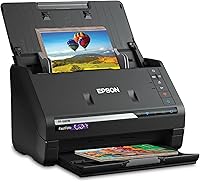
A feed-through scanner changes that. The FastFoto FF-680W batch-scans up to 36 photos at a time, which turns a weekend of snapping into a single session.
Epson says the FF-680W can scan as quickly as one photo per second at 300 dpi, so the time goes into checking results instead of lining up each shot.
What a phone gets right
A phone is the fastest way to start. You can open an app and take a picture in seconds, with nothing to unpack and no cable to plug in.
For sharing, the phone wins on convenience. A picture can go straight to a family group chat, and a rough copy is often enough for a quick reaction or a memory post.
Phone copies also fit the way many people already work. The files are already on the device, so there is no transfer step, and the photos sit next to everything else you have taken.
What a phone cannot fix
A phone app can crop and straighten a print, but it cannot put back detail that the print has lost. Scratches, fading and cracks remain in the file, and the app may smooth them away in a way that looks unnatural.
A scanner has the same limits, but its copy is more consistent. The FF-680W adds auto enhancement, color restoration and red-eye reduction, which helps when you want a clean starting point before any editing.
Neither tool can replace careful handling. Keep the original out of direct sun and away from heat, whichever way you copy it.
What the scanner adds to a family archive
A scanner gives you a consistent copy each time, so the archive looks like one collection. That consistency matters when you show the photos at a family event or send a set to a relative.
A scanner also repeats the same settings for each print. You can scan a later batch with the same resolution and color mode, which a phone rarely lets you do.
Organizing a large collection
A large collection needs a naming habit, whichever tool you use. Name each file with the year, the event and a number, so you can sort the set without opening every picture.
Keep one folder for the scans you copy at high quality and another for the smaller copies you share. That split saves space and keeps the originals of each scan easy to find.
A scanner makes this easier, because each file comes out the same size and format. A phone camera roll mixes snapshots, screenshots and phone photos, which makes a family archive harder to sort.
Sharing and backup
The FF-680W can upload scans to Dropbox and Google Drive, according to Epson. That gives you an offsite copy as soon as the batch finishes.
For the FF-680W against a document scanner, see the Epson FastFoto vs ScanSnap iX2500 comparison.
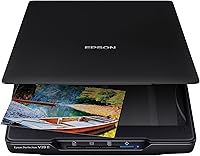
The V19 II can scan directly to PDF or email with a press of a button, which works well when you want a file to send at once. Pick the path that fits how your family shares photos.
Whichever tool you use, keep at least two copies of the final files in separate places. A single backup on one device is a risk you can avoid.
Time for a real session
A phone takes a minute or two per print once you count the lining up, the tapping and the cropping. For a box of 200 prints, that is hours of standing at a table.
A flatbed takes a similar amount of time per print, but it keeps the lighting and the framing the same from one print to the next. You spend less time fixing crooked edges and more time looking at the pictures.
The FF-680W changes the math for a big pile. It batches up to 36 photos at a time, so you feed the stack and check the results rather than snapping each print.
Who should stick with a phone
A phone is enough if you have a few matte prints, you want to share them quickly and the originals are safe at home. It also suits a one-off job, like a single photo for a family event.
Pick a scanner if the prints are important to you, if the collection is large or if you want the same look across every file. A scanner is the more careful choice for anything you plan to print large.
Two scanners that cover the choice
If a scanner is worth it for you, two models stand out for home use. Each one solves a different part of the phone-app problem.
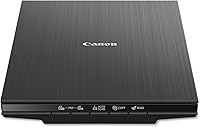
The V19 II suits a few dozen prints you want to handle one at a time, and the Canon LiDE 400 review covers a one-cable USB-C option. The FF-680W suits a bigger job, as long as most of the prints are in good shape.
Setup, storage and the first session
A flatbed needs a clean spot on the desk and a USB port. Set it up once, then scan a few prints to get a feel for the settings before you start the big pile.
A feed-through scanner needs a stable spot and a Wi-Fi or USB setup. Plan a session when you have an hour or two free, and keep the box of prints in order as you go.
Keep the originals in a cool, dry place with the scans saved in two separate spots. A scanner makes that backup easy, which a phone camera roll rarely does.
Mistakes to avoid when you choose
The first mistake is trusting a phone for a glossy print. The shine often ends up in the file, and that can't be fixed later.
The second is skipping a test scan. Run one print through the scanner or phone first, then check the file at full size before you commit to the pile.
The third is buying a scanner for a single photo. If you only have a few prints, a phone app saves money and time.
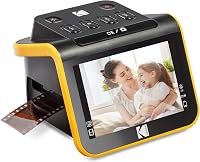
The fourth is trying a phone on slides or negatives, which need a film scanner. The Kodak Slide N Scan review covers a film-first option.
So is a photo scanner worth it?
A phone app is enough when you have a few matte prints to share. A scanner is worth it when the collection is large, the prints matter, or you want the same quality on every file.
Start with the flatbed if your prints are fragile or you want full control. Move to a feed-through model if the box is large and the prints are in good shape.
For a closer look at the flatbeds that suit family photos, see the best flatbed scanners for photos. Our note on whether photo scanners are worth it covers the cost and time side of the decision.
Our photo scanner buying guide sorts every scanner type on this site in one place.
Frequently asked questions
Is a phone scanning app as good as a photo scanner?
For a few prints, a phone app is close enough to share. For a full collection, a scanner is better, because each copy is flat, sharp and lit the same way, and a phone scan changes with light and angle.
Can a phone app scan old photos without glare?
Some apps reduce glare, but glossy prints still reflect the room. Tilt the print away from the window and scan under even light, or use a scanner, which has its own light and no glare from the room.
How much time does a phone app save?
A phone app saves setup time for a small job. For a large box of prints, a feed-through scanner finishes the job faster, since you feed prints in batches rather than snapping each one.