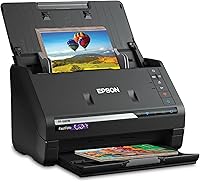
How to Choose the Best Document Scanner for Home Papers
Choose the best document scanner for home by the paper you scan, then decide between portable and desktop. A portable model fits a small desk and a few sheets a week, while a desktop model with a feeder suits a steady stack of papers.
On this page (15 sections)
- Start with the paper you scan
- What home papers ask a scanner to do
- Portable or desktop: which fits your home?
- Duplex, feeders and speed
- File formats: PDF, JPEG and searchable text
- Software and where your scans go
- Thick items, plastic cards and what a feeder handles
- Connection, power and desk space
- When a phone app is enough
- Keep the scans of private papers safe
- Storing a paper archive at home
- Setting up a document scanner at home
- Desk, cable and operating system checks
- A checklist for any document scanner for home papers
- Which document scanner for home papers should you buy?
The best document scanner for home is the ScanSnap iX1300 for a steady stack of papers, and the Epson ES-50 for a few sheets at a time. A few receipts and letters call for a small portable model, while a steady stack of forms calls for a desktop feeder.
This guide walks through each choice in order. It ends with a short checklist, so you can compare any model you find against the same questions.
Start with the paper you scan
The kind of paper decides most of the choice. Receipts, letters, recipes and school forms fit a portable scanner, while a box of tax papers or a stack of household files suits a feeder.
Think about thickness too. Thin letters and printed pages feed cleanly through almost any model, but thick cards and plastic items need a scanner built to handle them.
Count how often you scan. A few sheets a month can wait for a portable scanner, while a weekly batch of papers pays off a desktop unit with a feeder.
Our best document scanner for home papers roundup compares the full range of desktop models.
What home papers ask a scanner to do
Home papers come in many shapes. Receipts curl and fade, bills arrive in envelopes, and school forms come in a mix of sizes, so the scanner has to cope with more than plain letters.
Most households scan the same few kinds of paper again and again. Receipts for warranties, recipes, letters, bills and forms make up most of a typical pile, and those jobs suit a steady, simple setup.
Before you buy, list the papers you scan most. That list tells you how thick the paper runs, whether both sides matter and how many sheets come in a typical batch.
Portable or desktop: which fits your home?
Document scanner for home papers: portable or desktop
A portable scanner is light and small, and it runs from a USB cable. It fits a desk drawer or a bag, and it's a good match for a few pages at a time.
Brother's DS-640 is one of those portable choices. It weighs about 1.5 pounds, and Brother says it's powered over a micro USB 3.0 cable, so you can scan even when no outlet is close.
A desktop scanner with a feeder takes a stack of sheets in one load. It takes more desk space, but it moves a steady pile of papers without much attention.
The ScanSnap iX1300 is built to fit a small space. It's a desktop model with duplex scanning, and it connects over USB or Wi-Fi.
Our best portable document scanner guide goes deeper on the portable side.
Duplex, feeders and speed
Duplex scanning captures both sides of a sheet in one pass. That saves time on letters, forms and receipts printed on both sides.
Single-sided scanning is enough for papers that are printed on one side. Most household papers, such as bills and school forms, come out fine on a single-sided scanner.
Speed figures come from each maker, and they vary by setting and by paper. Brother says the DS-640 scans up to 16 pages per minute, and ScanSnap says the iX1300 reaches up to 30 pages per minute duplex.
Those figures are useful for comparing models, but a real stack moves slower once you add the loading and the file names. Plan extra time for every batch.
Ask whether the speed figure applies to one side or to a duplex pass, because the maker's number can differ between the two. Read the detail before you compare.
File formats: PDF, JPEG and searchable text
A PDF holds several pages in one file, which suits bills, forms and letters. A JPEG holds one image per file, which suits a single receipt or a card.
Searchable text is a separate choice. Optical character recognition, or OCR, reads the words on a scan so you can search for a name or a number later, and Epson lists OCR on the Workforce ES-400 II.
Pick the format once and keep it for the whole archive. Mixed formats make a folder harder to search, and a consistent format keeps the papers easy to find.
Software and where your scans go
Software decides where a scan goes and how it's named. Good software saves time, since you can send a scan straight to a folder, an email or a cloud service.
Epson's ScanSmart software is included with the ES-50, and Epson says it lets you scan, review and save each page. Brother's iPrint and Scan app sends scans to a computer, a network, the cloud or email.
ScanSnap Home software ties together the iX1300's scans, and it's the tool for managing them. Canon's scanners come with their own software, so check the features before you buy.
Choose the software that matches your computer and your habits. If you already use a cloud folder for papers, pick a scanner whose software sends scans there.
Thick items, plastic cards and what a feeder handles
Most home papers are thin, but some household items are thicker. Plastic cards, embossed cards and thick folders need a scanner that's built to feed them.
ScanSnap says the iX1300 handles thick items and plastic cards. The Brother DS-640 and the Canon R10 both list plastic and embossed cards among the items they take.
Check the size and thickness limits before you feed a thick item. A jam can damage a card, so use the feed path the maker describes.
Connection, power and desk space
Most of these scanners connect over USB, and the iX1300 also offers Wi-Fi.
A wireless link lets several people send scans to one scanner. If the scanner stays on one computer, a USB model is simpler and needs no network setup.
Portable scanners often run on USB power, so the cable is the only power link you need. The Canon R10 is USB powered, and Canon lists power use of 2.5 watts or less.
Measure the desk before you buy. A portable scanner is only about 1.5 inches tall, but a desktop feeder needs room for the paper tray and the output.
Our guide to choosing a photo scanner covers the same questions for photos, and the photo scanner buying guide lists the full range.
When a phone app is enough
A phone app can capture a single receipt or a letter in a few taps. It works well for a one-off paper you need to send today.
A scanner pays off once the stack grows. A feeder or a duplex scanner handles a batch without the awkward angles and shadows that come with a phone photo.
Our photo scanner vs phone app comparison covers the same trade-off for prints and photos.
Keep the scans of private papers safe
Home papers often include bank statements, tax forms and identity documents. Store those scans in a password-protected folder or an encrypted drive, and limit who can open them.
Keep one backup in a second place, and delete copies you no longer need. A scanner doesn't protect the file once it's saved, so the storage habits matter as much as the scanner.
Our guidance here is general. For legal questions about whether a scan is an official copy, check with the office that issued the paper.
Storing a paper archive at home
Sort the scans into one folder per year, then into subfolders for each kind of paper. That layout makes a tax year or a home repair easy to find later.
Keep a backup on a second drive, and store it in a different place from the main computer. A backup in the same room won't help if a fire or a flood reaches the desk.
Review the folders once a year, and delete copies you no longer need.
Fewer files means a faster search and less to protect. Keep the folder names in the same pattern each year, so the archive reads the same way decades from now.
Setting up a document scanner at home
Place the scanner on a flat, steady surface near your computer, and leave room for the paper tray and the output. Install the maker's software first, then connect the cable, as the manual directs.
Scan one sheet first, and check the file on a large screen. Look for crooked edges, a missing second side and any text that's too faint to read.
Set one folder for each kind of paper, such as bills, receipts or school forms. Name each file with the date and the subject, so the folder sorts by time at a glance.
Desk, cable and operating system checks
Check your computer's ports before you order. A USB-C scanner needs a USB-C port, and a USB 3.0 micro cable needs a matching port on the device you use.
Check the maker's support page for your operating system. Scanners that run on older systems may not work with the newest versions, so look for current drivers before you install.
A checklist for any document scanner for home papers
Use the same questions on every model, so the choice rests on the specs rather than the box.
- What kind of paper do you scan most, and how thick is it?
- Do you need duplex scanning, or are your papers single-sided?
- How many pages come in a typical batch, and how often do you scan?
- Is portable or desktop better for your desk and your habits?
- Which software sends scans where you want them?
- Which cable and ports does the scanner need, and does your computer have them?
- Does the maker's support page list your operating system?
If you can answer all seven, the choice narrows fast. The best scanner for photos and documents list covers scanners that do both jobs.
Which document scanner for home papers should you buy?
Buy the Epson ES-50 for a few sheets at a time with a light, USB-powered body. Buy the ScanSnap iX1300 if you want duplex scanning and a desktop unit for a steady stack.
The Brother DS-640 suits a portable scanner that runs off a cable and fits a bag. The Canon R10 fits a duplex scanner with a small body and USB power.
Whichever you choose, check the cable, the operating system and the storage plan for your scans before you order. For a broader look at home papers and photos together, read the photo scanner buying guide.
Frequently asked questions
What is the best document scanner for home?
For a few sheets at a time, a portable model like the Epson ES-50 fits a small desk and a shelf. For a steady stack of papers with both sides scanned, the ScanSnap iX1300 is the desktop pick that fits a small space.
Do I need a duplex document scanner?
Duplex scanning captures both sides of a sheet in one pass, which saves time on letters, forms and receipts printed on both sides. If most of your papers are single-sided, a single-sided model is enough.
Can a document scanner handle receipts and business cards?
Several models here list receipts, business cards and plastic cards among the items they handle, including the Brother DS-640 and the Canon R10. Check the thickness and size limits in the maker's details before you feed a thick item.
Is a phone app good enough for home papers?
A phone app can capture a single page, but a document scanner feeds sheets faster and produces a consistent file. For regular papers, a scanner saves time once the stack grows.
How should I store scans of private papers?
Keep scans of tax forms, bank papers and IDs in a password-protected folder or an encrypted drive, and limit who can open them. Keep a backup in a second place, and delete copies you no longer need.